A creator’s video is live—and a product spec is wrong. How do you ask for a correction?
A practical YouTube example for verifying a product error, agreeing on a correction, and checking the public result. Includes a comparison table and a creator email template.

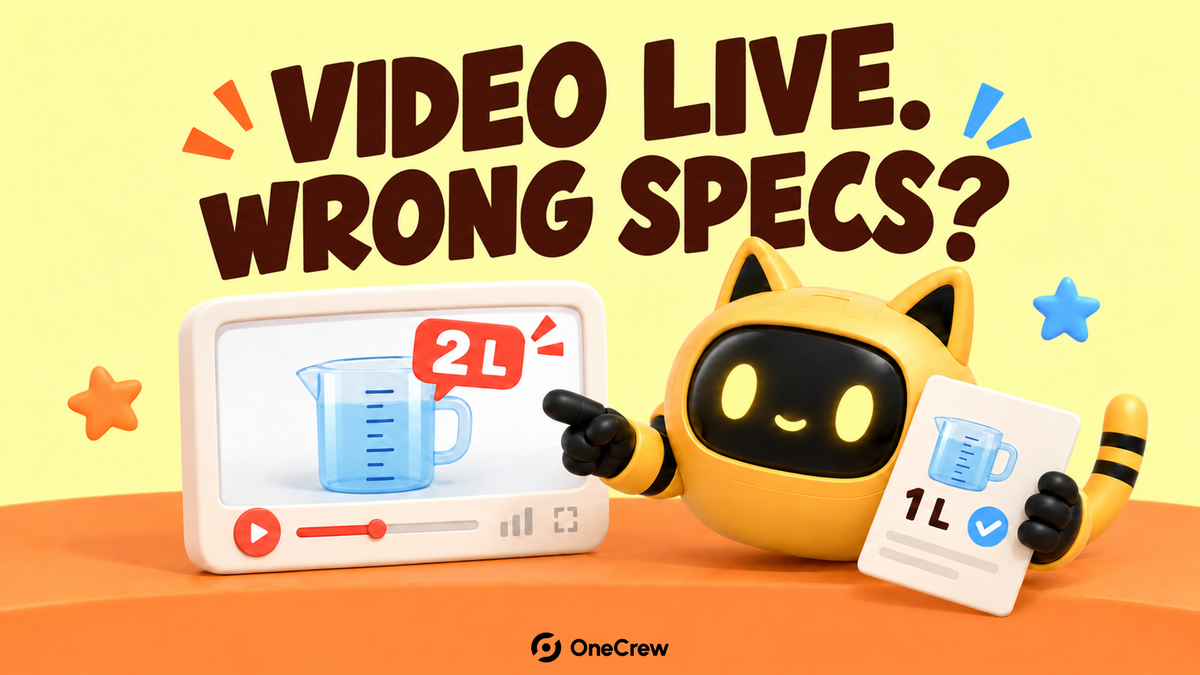
A viewer asks whether your product holds one liter or two. You replay the creator’s video and realize they have doubled its capacity. Sending “That’s wrong—please fix it” leaves the creator with several questions: which claim, what source, and what can actually be changed now that the video is live?
Verify the product and the exact error, then send the supporting information, proposed action, and a way to check the result together. This guide uses a published YouTube video as its example. The aim is to get accurate information in front of viewers and give both sides a clear point at which the correction is complete.
Identify the claim and verify the product first
Open the public video and record its URL, the time you checked it, and the timestamp of the error. Note both the spoken words and any text visible in the frame. Ask your product owner to confirm the model, market version, and source of the correct specification. A newer model’s specs are not evidence that a statement about an older model is wrong.
For a fictional example, suppose the narration and on-screen text at 00:35 say “two liters,” while the approved specification for the supplied Model A says one liter. Check the brief you sent, too. If your own brief contained the wrong figure, acknowledge that in the request instead of leaving the creator to discover it.
| Detail | What to record in this example |
|---|---|
| Content and location | Video URL; 00:35–00:40; narration and on-screen text |
| Current claim | “Two-liter capacity” |
| Confirmed information | The supplied Model A holds one liter |
| Evidence | Product-owner-approved spec sheet, revision date, and relevant section |
| Reply needed | Feasible correction method and expected completion time |
The background may be scattered across the original offer, sample confirmation, and later replies. OneCrew is an AI workspace for organizing creator details, recorded conversations, and collaboration information. Ask an AI connected to OneCrew to read the relevant recorded conversation, then supply the video location and verified spec sheet. It can help assemble the comparison above for your review, so you do not have to reconstruct the context for every message.
Keep factual claims separate from personal opinions. “It holds two liters” can be checked against the product. “I found it awkward to use” is the creator’s experience; disagreement with the brand does not turn it into a specification error.
Agree on the scope before choosing the fix
List every affected location. The same claim may appear in the narration, text burned into the video, the title, the description, and a separate edited clip. Updating one location does not correct the others.
For a text-only error, identify the exact text that needs changing. For a spoken or visual error, discuss a correction notice, removal of the affected passage, or a revised upload. If the claim could lead someone to buy the wrong model or use the product incorrectly, ask the product owner to assess the impact and coordinate with the creator and your channel owners about pausing further distribution.
Product-safety issues and regulated claims need the appropriate internal review. Do not decide that a short note resolves them using a generic checklist. Even for an ordinary spec correction, agree separately on additional editing, filming, cost, and timing. This is not the moment to slip a new creative direction into the request.
Keep the confirmed issue list, supporting document locations, and next steps in the creator’s OneCrew notes. Have the AI separate actions both sides have accepted from questions still awaiting a reply. Review that distinction before updating the record; a proposal from your team is not yet an agreement with the creator.
On YouTube, distinguish a notice from a change to the video
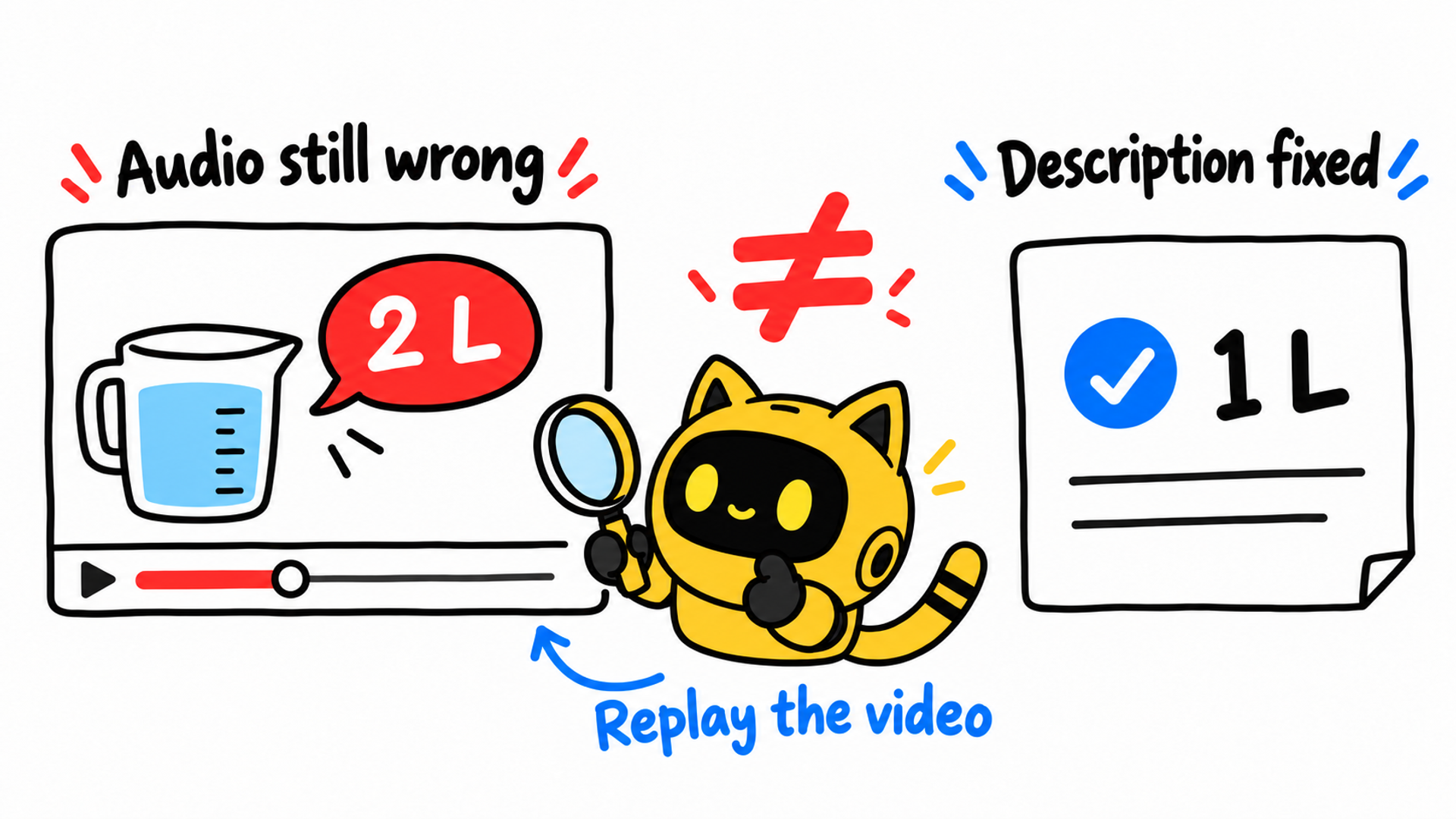
Creators can edit a video’s title and description in YouTube Studio. For a correction notice, YouTube specifies the English label Correction: or Corrections:, followed on a separate line by a timestamp and explanation, after any chapters. The feature is unavailable for channels with active strikes or content that may be inappropriate for some viewers. YouTube’s video settings guide
For the fictional example, the draft notice could read:
Correction:
0:35 The Model A shown here holds 1 liter. The spoken reference to 2 liters is incorrect.
A notice does not replace the original audio or on-screen text. Ask the creator to check feature availability and the viewer-facing result rather than treating a prepared notice as a completed correction.
YouTube Studio also supports cutting out a section while retaining the URL, views, and comments. Its editor has duration and some high-view-count restrictions. Saved edits cannot be reversed using “Revert to original,” so the creator should retain source files and preview the cut before saving. YouTube’s trimming guidance
A full revised upload gets a new URL; it cannot replace the entire file at the existing address. Agree on what happens to the old upload and links your team already uses. Deletion is permanent, so “just delete and repost” leaves important decisions unresolved. YouTube’s replacement and deletion guidance
Send a request the creator can act on
Start with the observed claim, provide its source, and propose a specific next step. Appoint one person to communicate with the creator. If several colleagues are contributing feedback, consolidate their comments first so the creator receives one coherent request.
Adapt this template with verified information:
Subject: [Video title] — product specification correction at [timestamp]
Hi [name], we checked the published video at [URL] and noticed that [exact wording] at [timestamp or text location] differs from the confirmed information for [model].
The correct information is [precise wording]. The supporting source is [document link, revision, and section]. We also checked the material we sent you: [acknowledge any error in the brand’s original information].
Could we agree on [proposed action and affected locations]? If this requires additional editing or filming, please let us know the feasible approach, timing, and cost before proceeding. This request is focused on the factual correction above.
Please reply by [date, time, and time zone] with the approach you can take and your expected completion time. That is a reply deadline; please confirm the actual correction schedule.
Once complete, please send [original or new URL and locations changed]. We will check the public version and confirm whether the correction is complete. Thank you.
Ask the AI connected to OneCrew to prepare the draft using the recorded conversation and verified comparison. Before sending, review the recipient, tone, source, and deadline. In particular, check that the draft has not presented an unapproved filming fee or schedule as an agreed term.
If the creator says you have referenced the wrong model or market specification, go back to the source. Accurate public information is the objective, and a correction request should be open to correction itself.
Check what viewers can see, then close the loop
After the creator sends a screenshot or says the update is done, open the public URL. Replay the affected section and check the title, description, and other agreed locations. For a correction notice, check its actual presentation. For a cut, check that the resulting passage makes sense. For a new upload, verify the new link and the agreed treatment of the old version.
Record the outcome against the agreed scope:
- Complete: What changed, where, who checked it, and when.
- Outstanding: For example, the description is corrected but an agreed on-screen change remains.
- Needs a separate decision: For example, a brand-owned cutdown repeats the same incorrect claim.
Have the owners of ads, embedded videos, and reposts check their versions. A corrected original does not update a previously exported ad asset. If purchase links also need changing, use the older-video link update checklist.
Save the public checks and remaining actions in the creator’s OneCrew notes, then prepare a short acknowledgment of what is complete and who owns anything left. Start with one error: use OneCrew to recover the collaboration context, prepare a precise request, and keep a record of the result viewers can actually see.