Using Creator Images on Your Website: Hand Off the Information, Too
Give website editors an image’s purpose and key information. Plan alternative text and detailed explanations, then check the rendered page.

When creator images will appear on your website, hand over the files and the information they convey in that page context. Decide what belongs in alternative text and what needs nearby written explanation. A file name and “product photo” often leave the website editor without enough information to make that decision.
Establish what the image helps the reader understand
The same photo can serve different purposes on different pages. It may be decorative, or it may demonstrate a control, placement, or result. Have the content owner supply the surrounding paragraph and intended purpose. Ask the creator which useful information appears only in the image.
OneCrew is an AI workspace for organizing creator collaboration records, worksheets, and email communication. Give OneCrew the images, page context, and creator explanations. Organize a worksheet by file, purpose, key information, and text location, so the website editor can assess each asset in context.
| Image purpose | Handoff material | Editor's next decision |
|---|---|---|
| Simple information | A short description relevant to the purpose | Suitable alternative text |
| Important text in the image | The important wording and its meaning | Whether the surrounding text already covers it |
| Complex comparison or sequence | Complete information, order, and explanation | Where a detailed text equivalent should appear |
| Decoration | Confirmation that it adds no information | Whether an empty text alternative is appropriate |
Describe the meaning rather than every object
W3C's informative-images tutorial explains that alternative text depends on the information conveyed and the context. If an image demonstrates a dial's locked position, that state may matter more than the background furniture. If it compares three modes, hand over the differences. These are editing examples; the actual description should follow the real image.
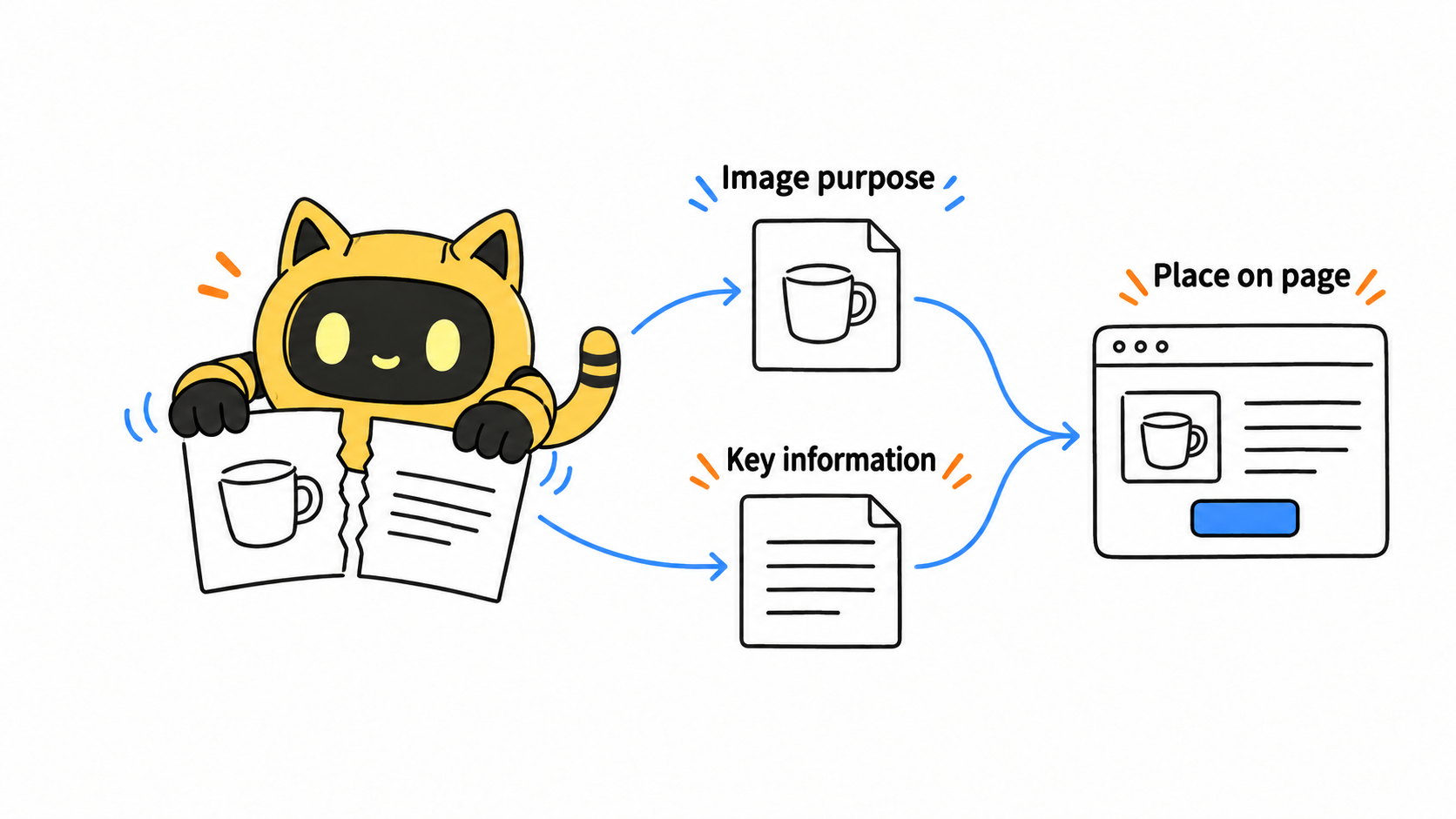
Do not squeeze a complex chart or multistep procedure into a very long alt attribute. Supply the full explanation so the editor can place it in surrounding text, a table, or a detailed description. A short alternative can identify the image's purpose and point toward that explanation. Consider existing page text to avoid needless repetition. An image's decorative status depends on its use, not on how quickly the team wants to upload it.
Review the file, wording, and page together
Give each image a stable identifier and its intended position on the page. Include important wording in the image and product facts requiring confirmation. After upload, the website editor should check the rendered alternative text, nearby explanation, and mobile presentation. Writing an alt suggestion in a worksheet is not the same as implementing it.
Try: “For each website image, please explain the key information it should communicate and provide important wording or steps as text. We will decide on alt text and page copy in context. Please flag product states or values that need brand verification.”
Use OneCrew to organize the supplied assets with synced collaboration emails, draft requests for missing information, and associate approved wording with the correct file. For website videos, use the captions, transcript, and visual-description handoff method; image alt text serves a different purpose from a video transcript.
For the next image delivery, bring the intended page use and information explanation into OneCrew with the file. The website team will receive material it can implement on the page, rather than an attachment it must interpret from scratch.