A Gift for Your Creator Was Discontinued. How Do You Confirm the Replacement?
When a creator gift is discontinued, group collaborations by fulfilment status, then confirm the replacement SKU, content impact, and shipping timing.

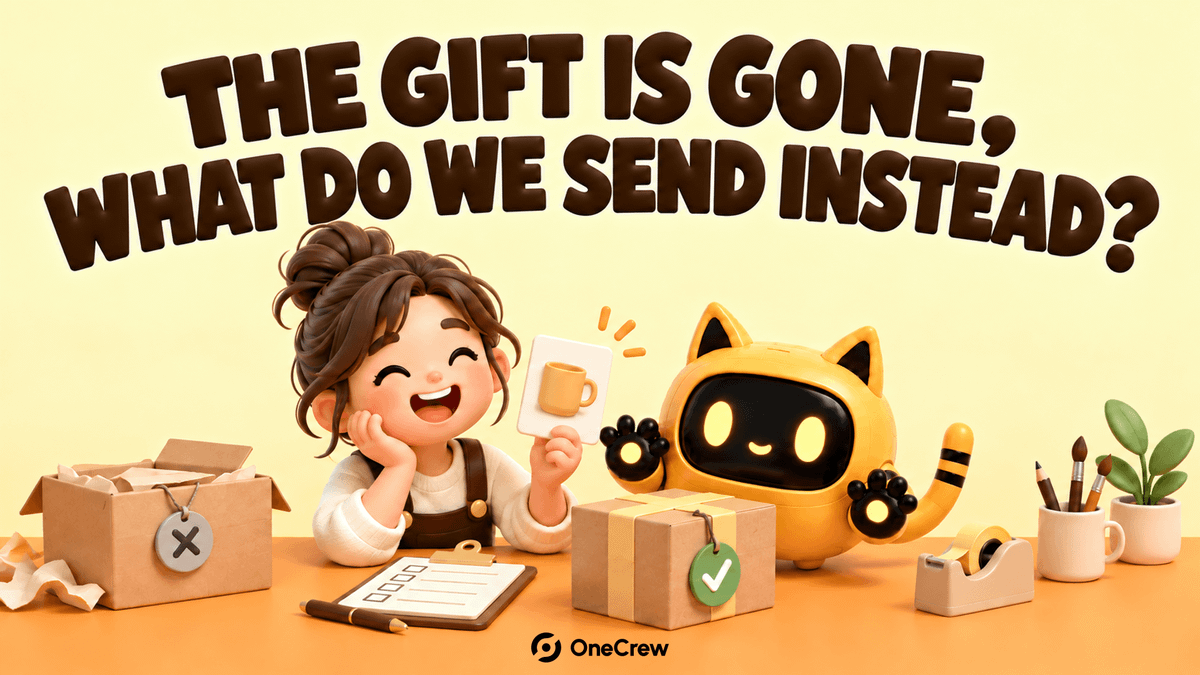
When a promised creator gift is discontinued, the problem is rarely just one missing item. The old gift list may still be attached to the invitation, the warehouse may prepare a new SKU, and the creator may still expect the original product. By the time the parcel ships, the filming plan may be out of date too.
Group the collaboration by fulfilment status, then confirm the replacement SKU, delivery timing, and content expectations with each creator. Do not replace the old product name in bulk before you know who has selected it and what has already shipped.
A Shopify Collabs merchant review raises this exact operational need: the gifts offered to collaborators should be editable when products are discontinued or new ones are added. Here is a practical way to handle the change.
1. Freeze the old list and identify the exact product that changed
Put the old invitation, the creator’s selection, the internal SKU, and the fulfilment status side by side. Record at least the original product name or SKU, the selection date, the current shipping status, and acceptable replacements. When names are similar, include the size, colour, capacity, or pack quantity.
Add a temporary status to each row: needs checking, can ship as planned, replacement needed, or needs a new conversation. Freezing the list means stopping the old version from being used for new invitations or picking. It does not mean stopping every collaboration.
OneCrew is an AI workspace for organizing creator profiles, conversation records, and collaboration follow-up. Give the connected AI the original gift agreement, the creator’s replies, and the current fulfilment notes. Ask it to list each creator’s confirmed SKU, unanswered choice, and conflicting information. After checking the source messages, add the current version to the creator’s notes so the next follow-up starts with the right context.
2. Use three fulfilment states to choose the next action
The same discontinued product needs a different message depending on where the collaboration stands.
| Current state | Confirm first | Next action |
|---|---|---|
| Not claimed or not selected | Is the old gift still shown in the invitation? | Remove it from the options and send the updated list |
| Selected but not shipped | Has the creator planned content around it? | Explain the change, offer one or two replacements, and request a clear choice |
| Shipped or received | Can the creator still use the original product as planned? | Confirm whether filming continues, then discuss reshipping, a brief change, or a schedule update |
Do not describe a replacement as “the new version” and leave it there. State the differences that affect the content: appearance, function, size, price point, or use case. If the creator has already written a script, the replacement is a content decision as well as a shipping decision.
The AI connected to OneCrew can organize these three states and the result of each message into a creator-by-creator list. Work through selected-but-not-shipped collaborations first, then handle people who already received the old product. A single broadcast message should not make every creator guess what applies to them.
3. Give the replacement a clear confirmation path
Each creator should receive four pieces of information: what they selected, why it is changing, which replacements are available, and when to reply. If there are several options, number them and include product links so a reply such as “Option B” leaves a usable record.
Ask about the content impact at the same time. Does the original filming plan still work? Does the product need a new talking point? Should an existing script change? Confirm the product and content before moving the filming date.
You can use this short message:
Hi [name], the [original SKU/name] you selected on [date] is no longer available. We can send [replacement A] or [replacement B]. The main differences are [size/function/appearance]. Please reply by [date and timezone] with your choice and tell us whether the original filming plan still works. We will update the sample record and timeline after your confirmation.
When preparing this message in OneCrew, ask the AI to bring in the original SKU, agreed content, and dates from the recorded collaboration. Check the replacement details before sending. After the creator replies, save the choice and the new commitment to the same creator record, so the change is a traceable decision rather than scattered copied messages.
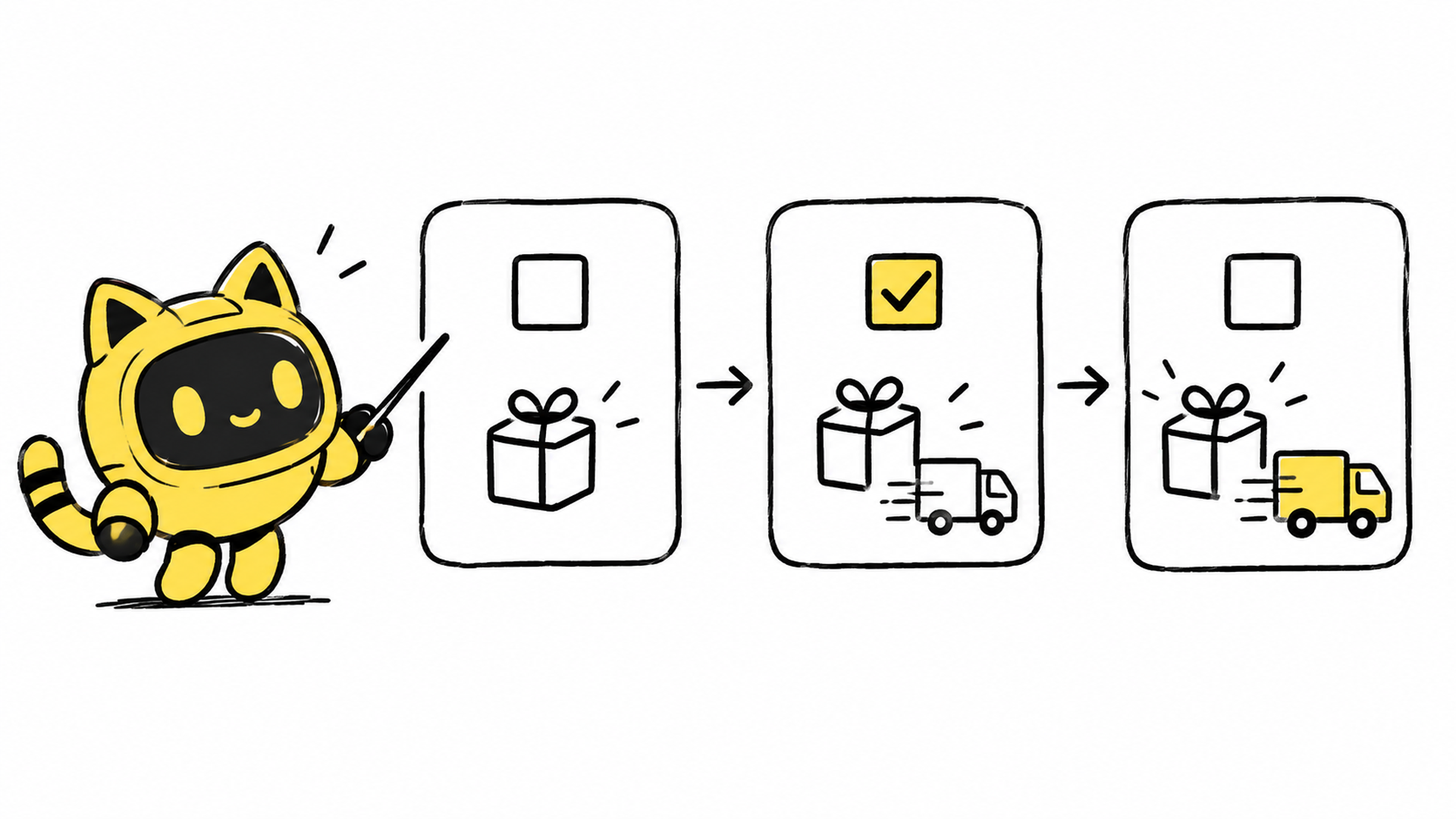
4. Send the change to the warehouse, content, and support owners
After the creator confirms, update at least three places: the sample list, the shipping instructions, and the content brief. The warehouse needs the final SKU and quantity. The content owner needs to know which talking points changed. The collaboration or support owner needs to know what the creator will receive and when the next update is due.
For a parcel that already shipped, record the tracking state and whether filming has started. Do not make the creator buy the new product or accept a refund as an automatic next step. Write down the owner, the supporting message, and the next check-in time for each case.
For a team working across several handoffs, OneCrew can keep the creator’s selection, replacement confirmation, warehouse note, and follow-up action in one collaboration context. Update the current status while keeping the message that supports the decision. A teammate can then see how the change was made.
5. Run a product–content–timing check before shipping
Before the final parcel leaves, review three columns: what is being sent, what the creator plans to film, and what happens next. If the three do not match, pause the shipment and confirm the gap with the owner and creator. Then check the address and quantity.
After shipping, do not close the task immediately. Record the shipping update, receipt confirmation, and content plan as separate checkpoints. The same process works for a discontinued item, a packaging change, or a replacement tied to a new launch.
If you need to handle a discontinued gift list today, start in OneCrew by gathering the original SKUs and recorded replies. Create a replacement-confirmation list, then send each creator a message with clear options and a deadline. Once everyone knows what they will receive, the sample and filming steps can follow one shared version.