Check Creator Video Captions Against Platform Overlays Before Publishing
Review captions, product details and prompts with the intended platform interface. Includes a timestamped revision template and placement-specific checks.

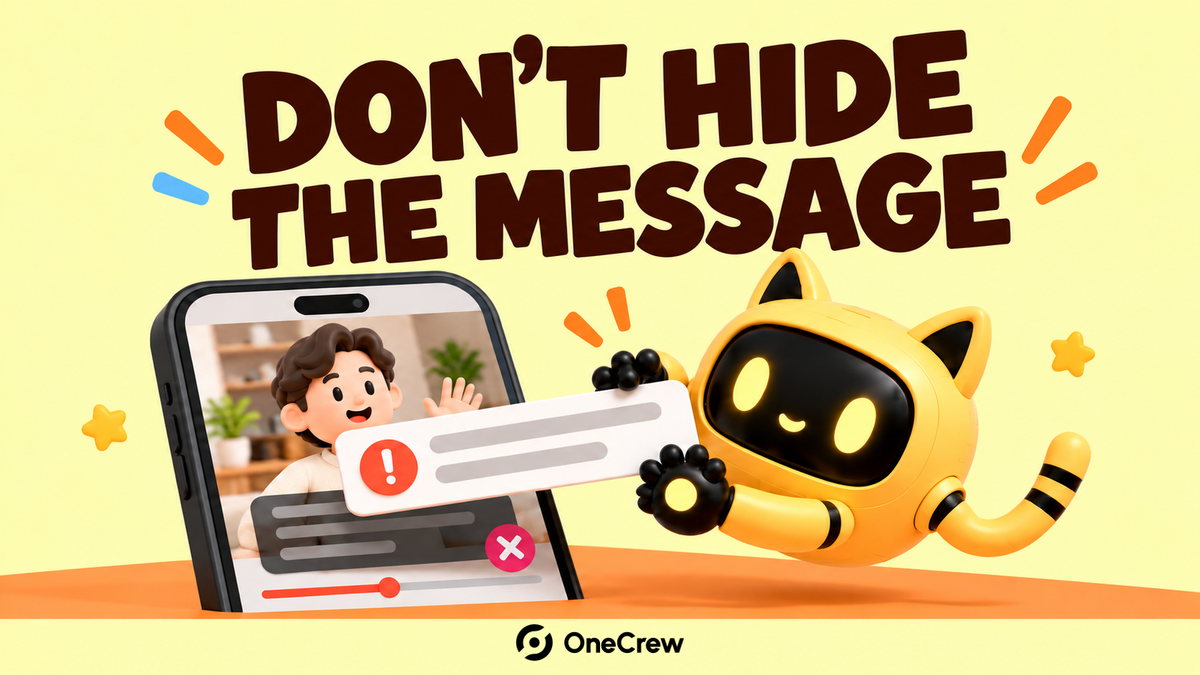
The captions are clear in a local player but disappear behind account details, buttons, or a call-to-action overlay in the platform preview. Review the video in its intended placement, with the relevant interface—not just as an exported file. Check captions, product details, and on-screen prompts together.
Confirm where the video will actually appear
Record the platform, organic or paid placement, aspect ratio, and any additional interface elements. Two placements can occupy different parts of the same vertical video. “Deliver one vertical video” does not specify the display conditions.
For example, TikTok's official auction in-feed ad specifications say safe-zone dimensions depend on aspect ratio, ad caption length, and additional formats. It provides different files for cases such as ads with anchors. That guidance applies to the specified ad format; it is not a universal margin for every platform or organic video.
OneCrew organizes collaboration worksheets and email history. Keep the agreed placement, current specification link, asset version, and reviewer in one record. A revision request can then identify the actual display conditions causing the problem.
Check three kinds of essential information
| Element | What to inspect |
|---|---|
| Captions | Complete phrases, the last line, and reading order after line breaks |
| Product information | Demonstration actions, key details, and necessary conditions |
| Action prompts | Conflicts between in-video instructions and platform buttons or descriptions |
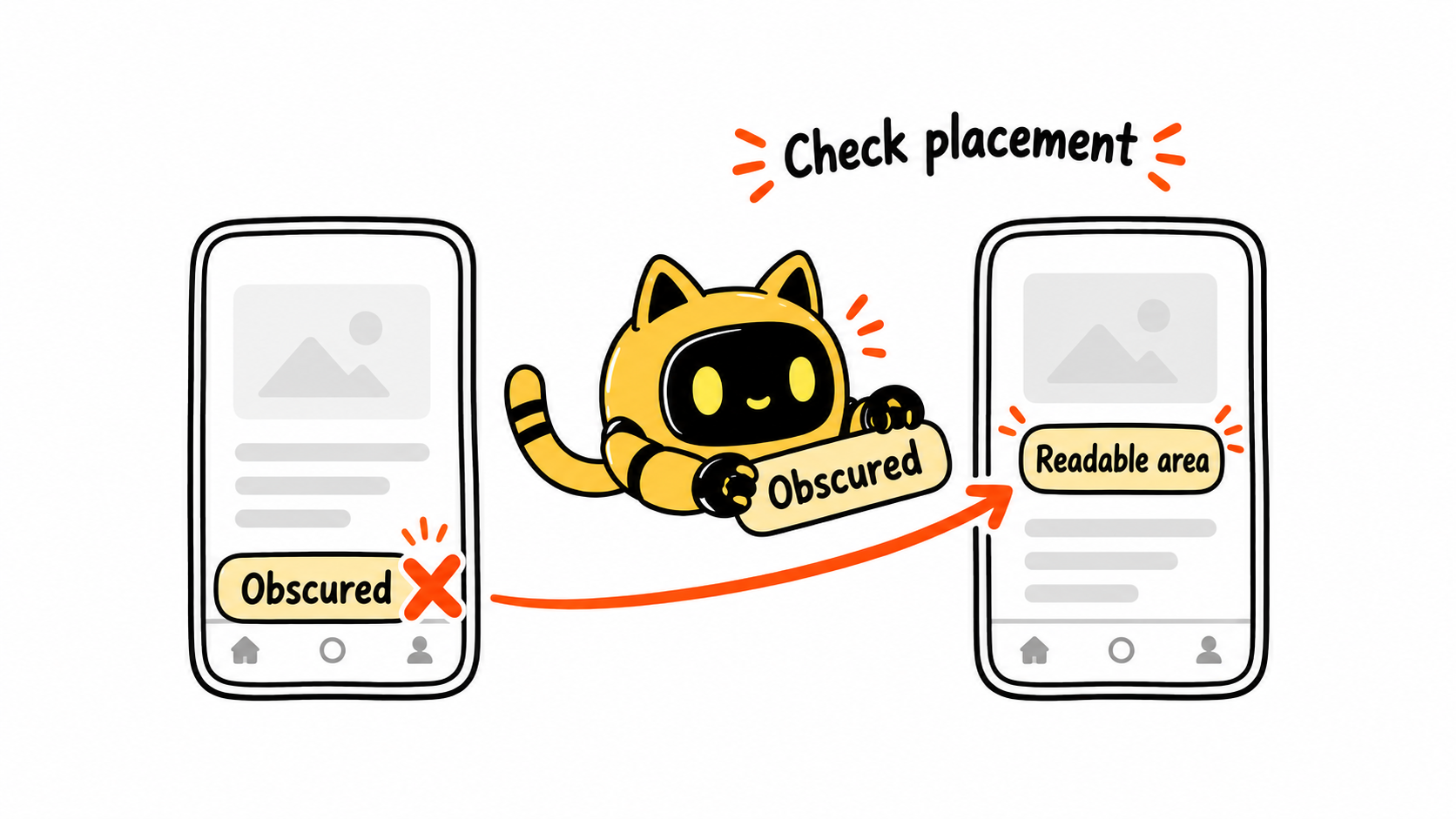
Use the placement's current official guidance to prepare the preview, then check it with the intended copy and additional components. Play the whole video, especially moments when captions expand to two lines, the product moves, or the closing prompt appears. A single uncluttered frame is not enough.
Give a timestamp, screenshot, and specific objective
“Move the captions up” leaves the editor guessing. A clearer note is: “At 00:12–00:15, the last line overlaps the lower interface. Please reposition it for the placement shown in the screenshot, retain the meaning, and return a preview of the revised version.” Replace those example timestamps with the actual problem in your asset.
Discuss positioning, line breaks, or framing first. Do not solve the overlap by deleting a necessary qualification or shrinking text until it is unreadable on a phone. If reframing changes the production scope, agree on the work and timing with the creator.
Save timestamps, screenshot links, and consolidated feedback in OneCrew. Use the existing conversation to prepare one revision email, with a named owner resolving conflicting comments before they reach the editor.
Recheck under the same publishing conditions
Confirm the file name, export time, or version identifier so you are reviewing the replacement. Load the agreed copy and components again, then play the full video. Check whether the new caption position now covers the demonstration itself. Review separate placements individually and request corresponding versions where needed.
TikTok also notes that previews are not device-specific and can differ slightly from the live version. Passing the preview is evidence of the check performed, not a guarantee across every device. After publication or launch, the responsible person should sample the actual display and address any issues found.
Review this asset for [platform and placement] using [copy and additional components]. Please adjust [caption/product area] at [timestamp], as shown in [screenshot]. Return [version identifier] for [reviewer] to check under the same conditions.
If both landscape and portrait assets are required, confirm the aspect-ratio deliverables before checking each placement.
Add the placement, preview reference, and reviewer to your next video record in OneCrew. That gives the team a concrete way to move from an exported file to a message people can read in the intended interface.