Briefing Green-Screen Creators: Assign Background Assets and Plan the Layout
Assign green-screen backgrounds, presenter positions, and compositing responsibilities before filming. Use a short sample to check the layout and handoff.

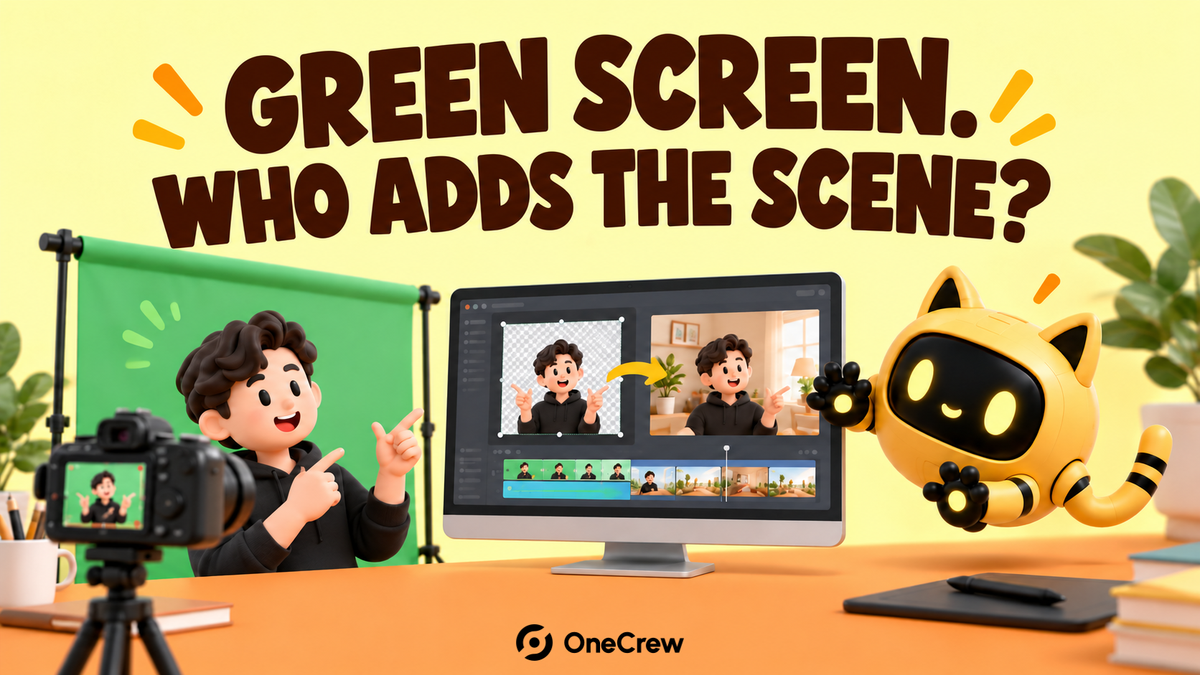
You commission a green-screen explainer and receive a recording of the presenter. Your team expected background research, visual assets, and a finished edit too. Once editing begins, the presenter also covers the product detail they are supposed to explain.
Map each spoken section to a background asset, presenter position, and production owner before filming. Then check a short composite made with the actual workflow. “Green-screen video” describes a technique, not a complete deliverable.
Define whether you are buying footage or a finished video
One public creator brief explicitly includes filming, sourcing backgrounds, editing, and posting. Those tasks may belong to one person or several. Agree on the arrangement before quoting and recording.
List what you need to receive: original presenter footage, a processed cutout, or a complete video with backgrounds, sound, and captions. The person receiving the files should specify requirements for the real editing workflow and agree on a sample check.
OneCrew helps organize creator records, worksheets, and emails. Record the creator, editor, background-asset owner, and each person’s deliverables together. Keep the confirmation email attached to the record so missing material has a clear owner.
Match each section to a specific background version
Give background files simple IDs. For each spoken section, identify what the viewer needs to see and which area must remain clear. For screenshots, confirm the page version. Check the basis for using third-party material and remove unnecessary private information.
| Item | What to specify |
|---|---|
| Spoken section | The fact or action being explained |
| Background | Asset ID, link, version, and owner |
| Essential area | What the presenter and captions must not cover |
| Transition or gesture | When the visual changes and whether a cue is needed |
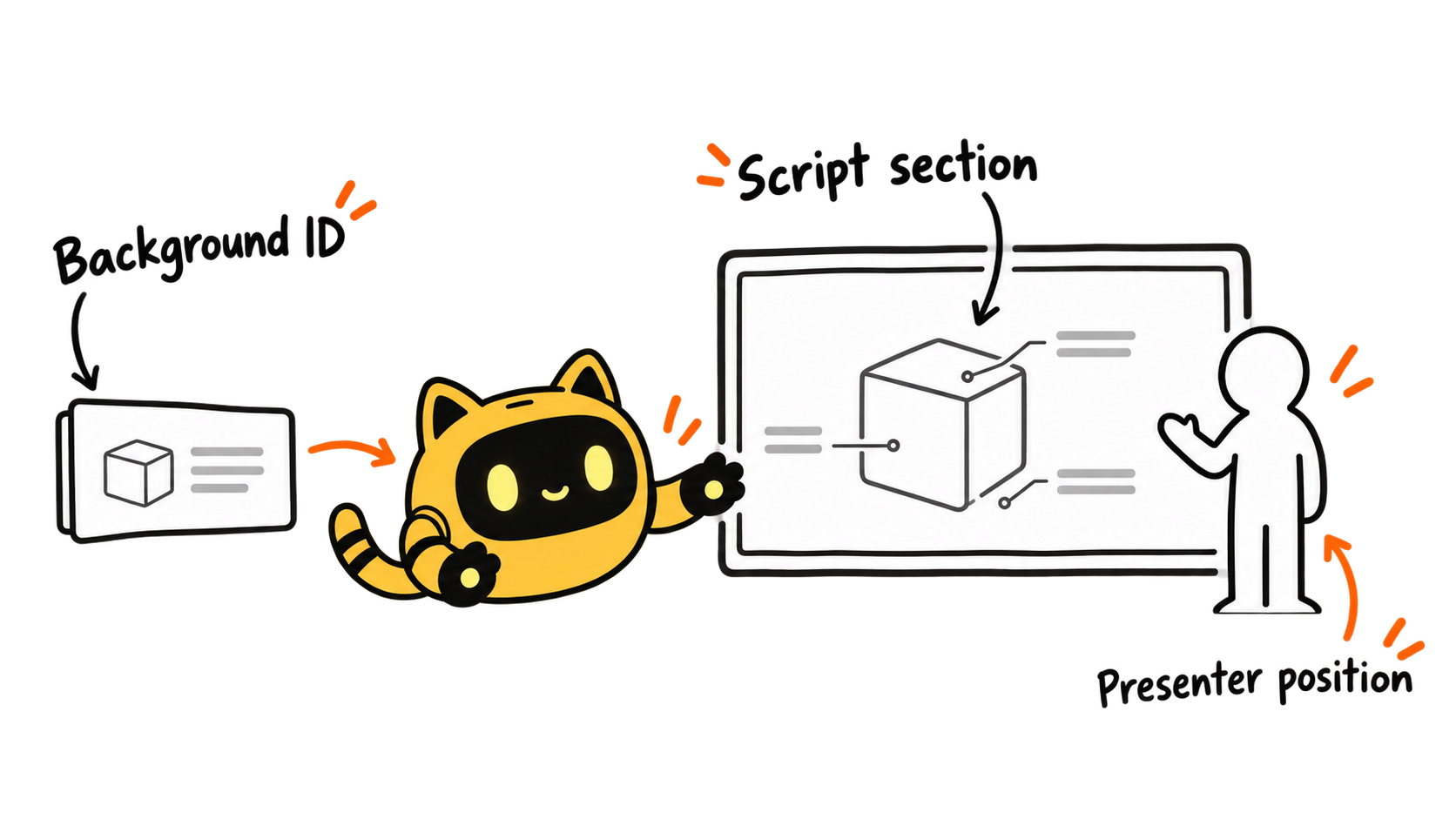
If the background is not ready, avoid recording precise pointing gestures against an imaginary layout. Agree on a placement zone first and record the relevant action once the visual is settled. A late layout change may require a different gesture or a pickup; confirm that work separately.
Test a composite before recording the whole script
Choose a short section containing the presenter, an important background detail, and a gesture. Have the actual editor composite it and check the edge quality, position, pointing accuracy, and readability. Agree on sample length, fees, and revision scope in advance.
“Stand on the left” can be ambiguous when previews are mirrored. A layout image showing the presenter’s intended position in the final frame is clearer than a direction alone.
Save the composite link, problem timestamps, and approved layout in OneCrew. Use them to prepare specific feedback, such as keeping the product specification area clear, rather than simply asking the creator to move farther sideways.
Review the final edit against the mapping
Check each background version, its timing, and whether the important information stays visible. Deliver the mapping with the files so another editor can follow it. Any later platform-overlay review should use the requirements of the actual placement.
Once the composite sample is approved, use the deliverables and revisions checklist to agree on final files and revision scope.
For the next green-screen video, record the background ID, presenter position, and production owner in OneCrew before confirming the shoot. Seeing the composite early makes the eventual handoff much clearer.