Inviting a Creator to a Webinar: Confirm the Panelist Link, Rehearsal, and Slides
Test a creator’s webinar access, rehearse the live handoff, and confirm approved slides, presentation responsibilities, and a backup owner.

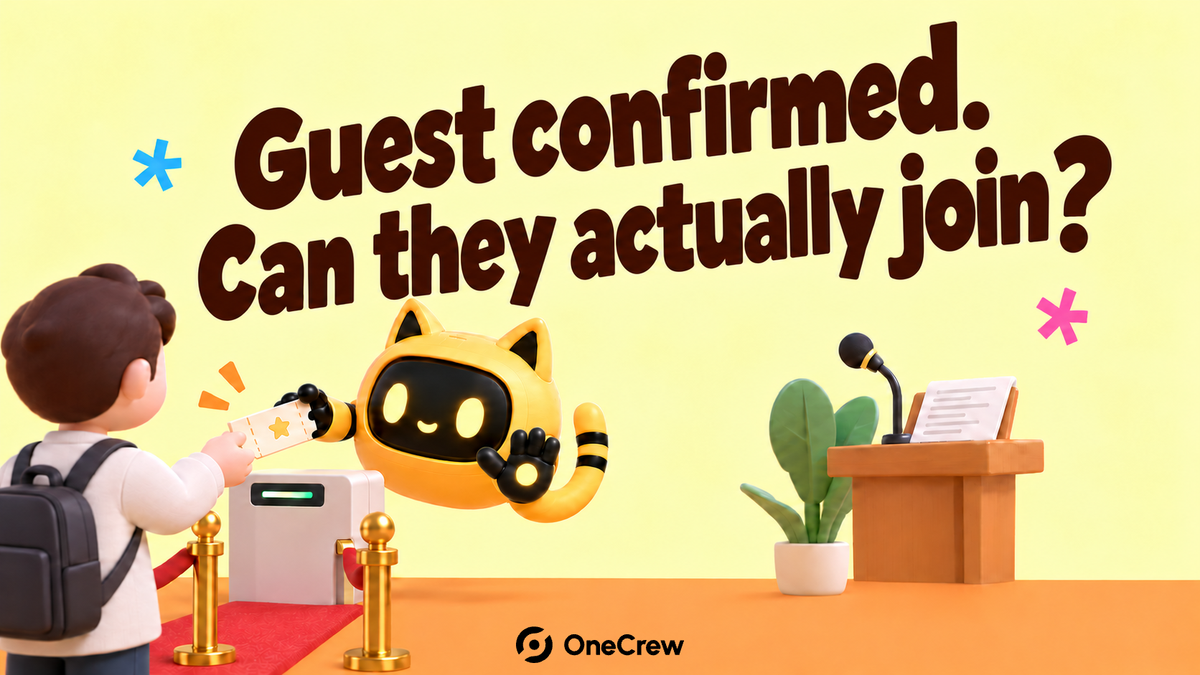
Before a creator's webinar appearance, confirm how they will join in the correct role, run an actual rehearsal, and hand the approved slides and script to a named owner. A registration link, panelist link, and backstage permissions can serve different purposes. Sending the invitation does not prove the guest is ready to present.
Test the right entrance with the right account
In Zoom Webinar, a panelist can join through their unique panelist link or an account that matches the panelist assignment. Zoom's guidance explains that an attendee joining with a different account or role may be unable to enter the practice session. Have the host verify the event type, assignment, and account requirements, then ask the guest to join using their actual setup.
OneCrew is an AI workspace for organizing creator collaboration records, worksheets, and email communication. Give OneCrew the invitation details, assigned roles, and guest confirmations. Organize a readiness worksheet by owner, joining role, test result, and outstanding task, so the event team can distinguish an invitation sent from access successfully tested.
| Check | Owner | Evidence of readiness |
|---|---|---|
| Panelist access | Host and guest | Correct role after actually joining |
| Audio, video, sharing | Guest and technical owner | Test on the presentation setup |
| Script and slides | Content owner | Approved version received and opened |
| Backup plan | Event owner | Agreed handoff if the guest disconnects |
Rehearse a handoff, not just a connection
Have the guest use the planned network, microphone, and camera. Practise the host's introduction and the transition to the guest. Open the real presentation if screen sharing is required. Confirm who advances slides and how the host takes the conversation back.
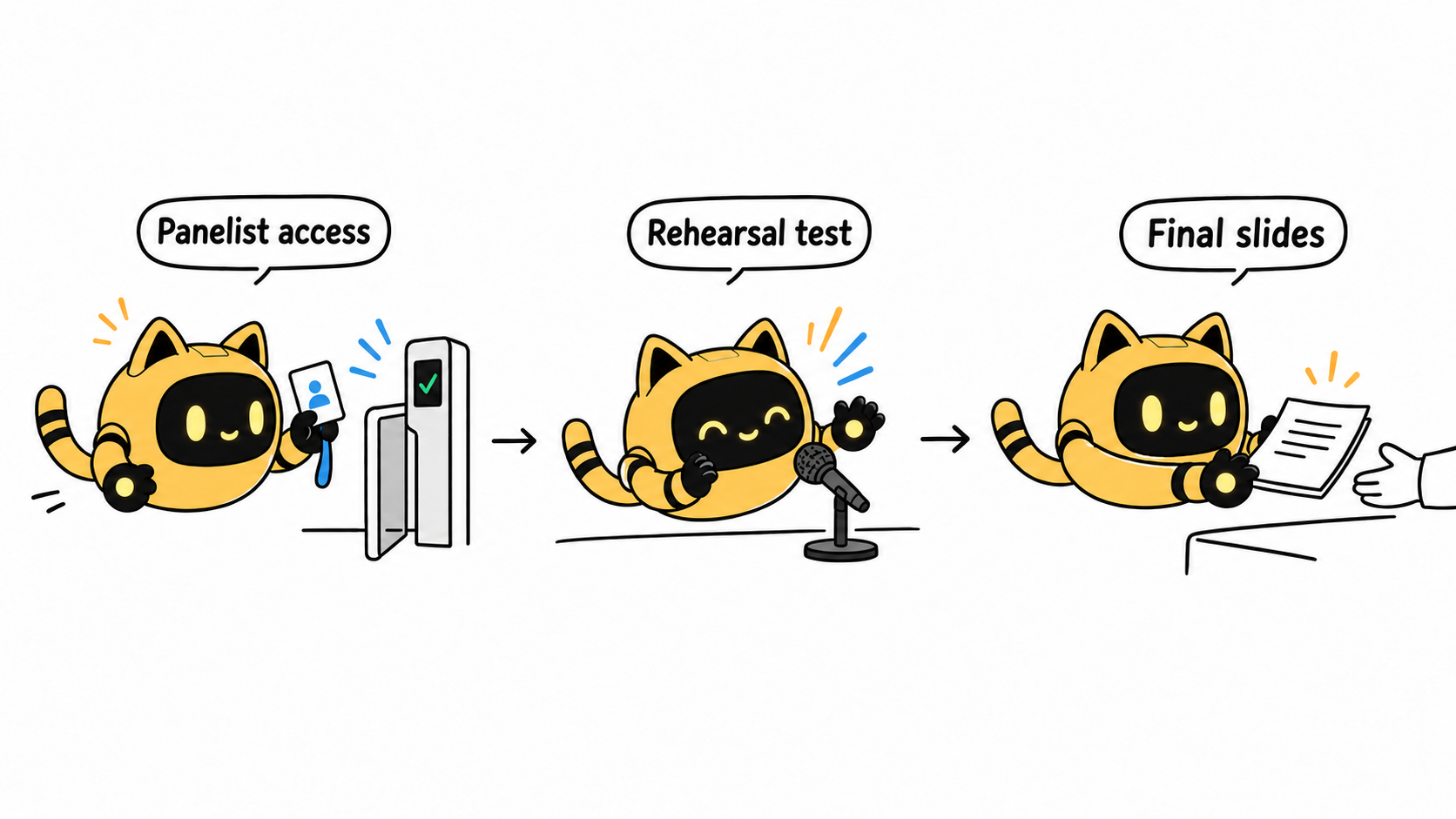
Zoom's practice-session access depends on the relevant roles and event setup. The organizer should check the current account conditions. For another platform, test its actual joining and presenting flow instead of treating Zoom's panelist rules as universal.
Record whether the private entrance was sent, tested, and confirmed, rather than placing a unique panelist link in a public preparation table. Send operational access details through an appropriate private channel to the people who need them.
Make the file handoff usable during the event
Identify the script version and approver. Note embedded media, live-demo dependencies, and who shares the slides. If the host will provide backup playback, supply an approved copy and test its fonts and media. Where circulation is restricted, identify who may hold that copy.
Try: “Please join the rehearsal through your panelist invitation using your event-day setup. Send the approved presentation and confirm whether you will share it or the host should play it. We will also practise who takes over if you disconnect.” Use OneCrew to prepare the confirmation draft from synced collaboration emails and the readiness worksheet, then organize the replies. For the presentation and Q&A sequence, see the creator live-demo run-of-show method.
Before the event, confirm access, approved material, and the live handoff. Bring the actual test results and file versions into OneCrew so the host's next action reflects what has been completed.