Check the Purchase Path in YouTube Shorts
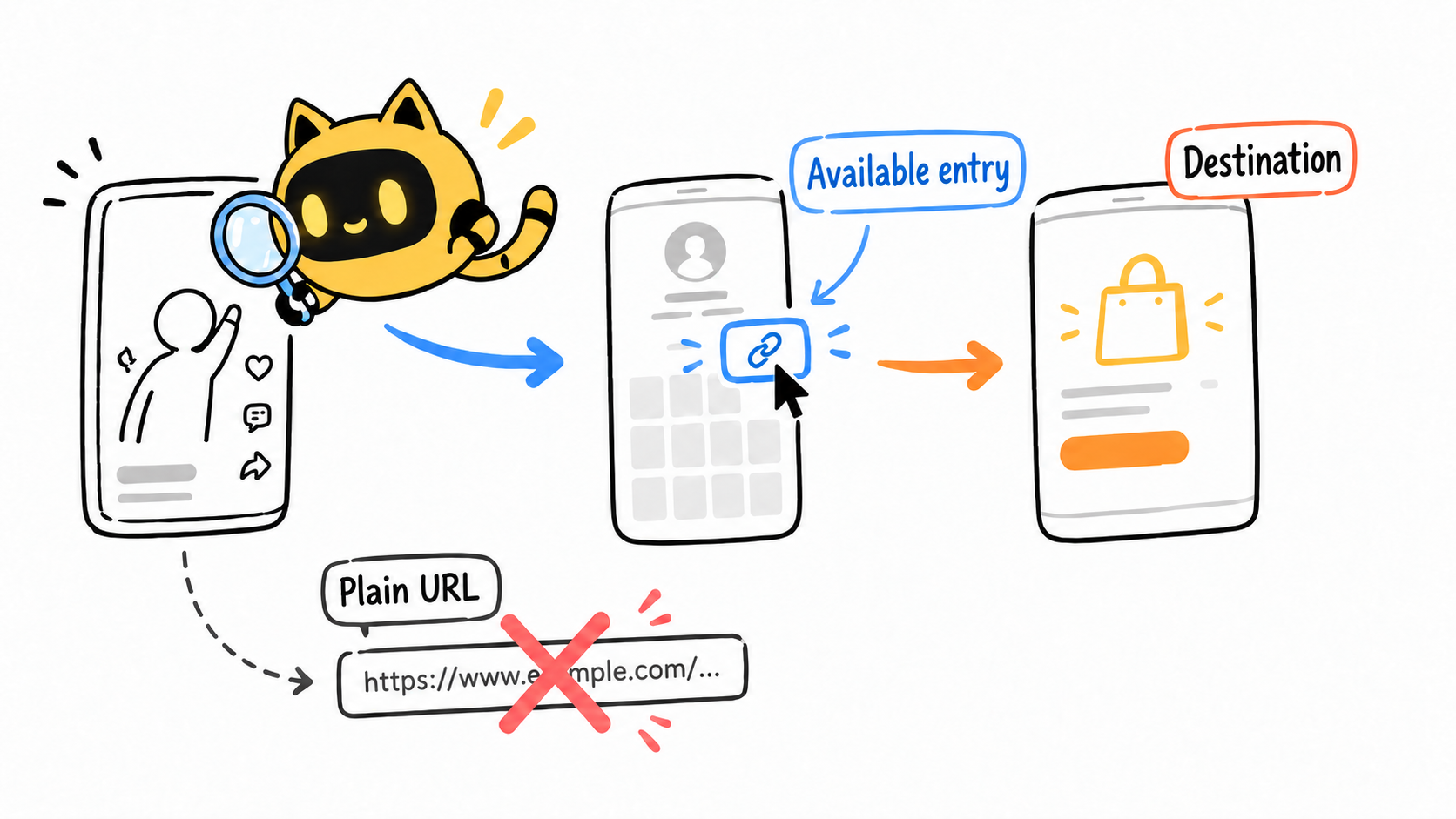
Ordinary URLs in Shorts comments and descriptions are not clickable. Verify an available entry point and make the creator’s call to action match it.


The creator says, “Click the link in the description.” The brand has checked that the URL opens. Then viewers report that they cannot click it. The failure may occur before anyone reaches the landing page.
Ordinary URLs in YouTube Shorts descriptions and comments are not clickable. Build the call to action around a route that is actually available on the creator’s account. YouTube’s official guidance distinguishes those URLs from channel profile links, related-video links, external brand-deal links, and other surfaces.
Start with the viewer’s first action
Ask the creator to use the intended account and identify where a viewer should tap after seeing the Short. Record the surface, its availability, the next page, and the remaining steps to the product. A call to action written for a long-form video should not be reused without checking its path.
OneCrew helps brands organize creator information, working records, and collaboration emails. Keep the video, viewer entry point, and destination together so the brief explains an action rather than asking the creator to interpret a URL.
Check each route on its own terms
| Surface | What to verify |
|---|---|
| Ordinary URL in a Shorts description or comment | Pasting the URL does not create a clickable button |
| Channel profile link | Viewers can recognize the intended campaign link after opening the channel |
| Related video in a Short | The correct video is attached and its onward instruction makes sense |
| Brand-deal or shopping surface | The account and content meet current requirements and the feature is configured |
A related video is an on-platform step, not a direct store link. Ask the creator to confirm account-specific brand-deal or shopping access. Use a verified route when a feature is unavailable; another creator’s screenshot does not establish eligibility.
Make the spoken instruction match the viewing path
If the campaign uses a channel profile link, the spoken and visual directions should explain which channel to open and which link to choose. When several collaborations appear there, confirm a recognizable link label and how long it will remain available.
Review the planned setup before launch, then walk the path from an ordinary viewing entry after publication. Record the client or device, check time, entry-point screenshot, resulting page, and whether it reaches the correct product. Describe failures precisely: a missing surface, a non-clickable URL, a broken redirect, and the wrong destination require different fixes.
Keep the findings in OneCrew and prepare a correction draft around the actual issue. Name the line to change when the instruction is wrong, or assign the account-setting change and arrange a recheck.
Include the route in publication confirmation
This Short will use [available surface]. The viewer path is [steps], ending at [destination]. Please use [approved spoken and visual instruction], confirm availability on this account, and provide [entry-point and destination evidence] after publication. The link arrangement will remain in place for [agreed period and owner].
Once the path works, check tracking and reporting separately. Clickability, the correct destination, and order attribution answer different questions; “the URL opens” does not verify all three.
Once the viewing path is confirmed, check Your Creator Link Has Redirects and a Shortener. Is Tracking Ready?.
For the next Shorts collaboration, write a real viewing path in OneCrew before drafting the brief. The call to action is useful when a viewer can follow it to the intended product.